
Overview :: Checkbox data
Some information associated with programs is best representated as a list of choices that the maintainers may turn on or off for a particular program. We refer to this data as "meta data", because though it may not be visible directly on the program page itself, it affects how that program displayed, searched for, and edited.
The types of "meta data" include:
Logged-in editors may view and edit them by scrolling to the bottom of a given program page.
Disciplines
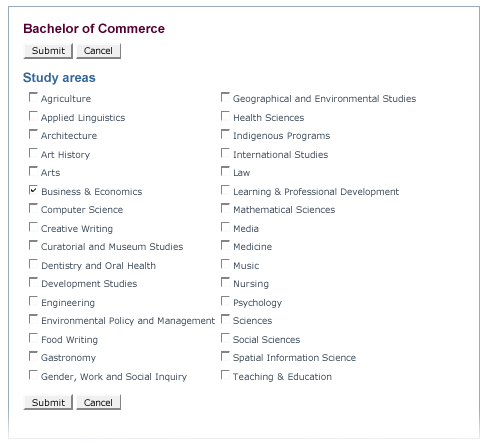
The disciplines are the lists that appear on the main entry page of Program Finder, grouping programs according to faculty/school boundaries. Some programs, like double degrees, may have more than one discipline, but most have only one.

Program Finder uses disciplines to decide who may edit which programs. For instance, people in the "Sciences" faculty program group may edit programs that have "Agriculture" or "Sciences" selected as a discipline. Double or combined degree programs may have editors in more than one faculty, and so editors must coordinate their efforts when editing these programs, to avoid clashes.
Because "discipline" controls who edits the program, changes to the selected options must be made with care, as you may inadvertently revoke your own rights to edit a program by removing it from the disciplines you have access to.
Program hierarchy
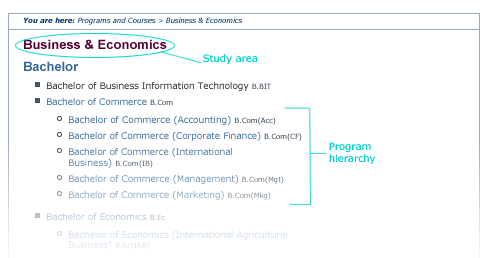
The program hierarchy affects how the program list pages are displayed, allowing for "child" programs to appear underneath the more general, top-level program.

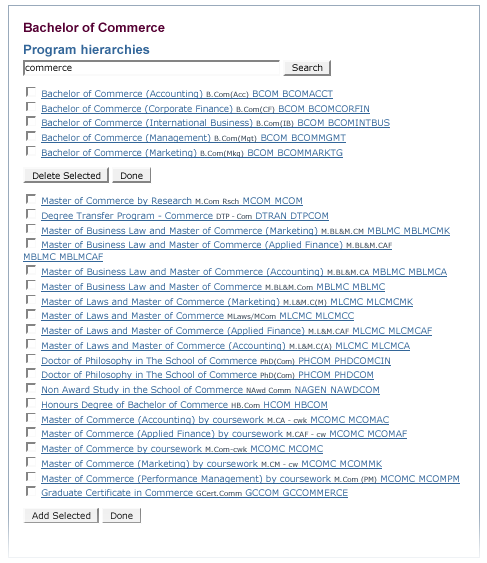
When editing the program hierarchy, the program's existing "child" programs will appear first in a list. These may be deleted by ticking the checkbox and clicking the [Delete Selected] button.
To add programs to the hierarchy, the editor must first perform a search using a word in the desired "child" program title. Select the program to add from the list of search results, and click [Add Selected].
Careers
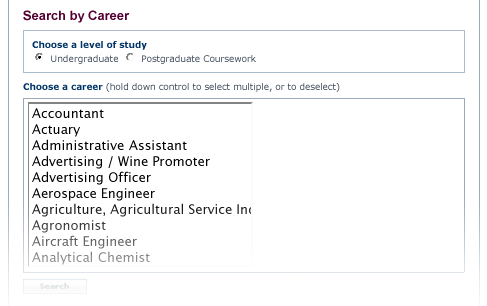
Because students tend to be career-oriented in their program choices, we provide a Search by Career form.
The list of careers for a given program are displayed as "Potential Careers" on the program page itself, underneath the "Career Opportunities" section text. The list of careers may be edited by clicking the [edit] link next to the list in this section, or at the bottom of the page.
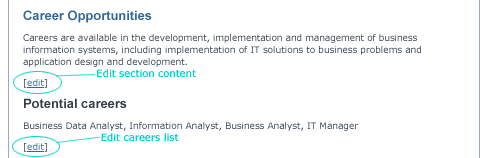

The list of career choices is displayed as an array of checkboxes. Simply tick or un-tick the appropriate checkbox to change the list of careers associated with a given program.
Please note that while the completion of a degree does not guarantee that a student will be qualified for a job in a given career, care must be taken when making the association between career and program to avoid misleading students or misrepresenting the outcomes of attaining the degree.
For consistency and to reduce duplication, contact Web Services to amend the list of career choices.
Subjects
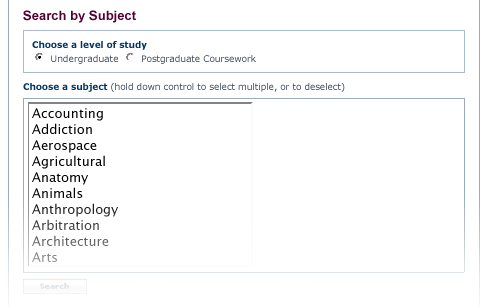
A program may be associated with several "subjects", otherwise known as "areas of interest" or "topics". This information is used on the Search by Subject form, and also appears in the program page's "meta data", which is visible to search engines.

For consistency and to reduce duplication, contact Web Services to amend the list of subject choices.


